
Moderator web portal
Know what every screen controls.
The portal is server-scoped. Confirm the server in the switcher before every change, then use the left navigation to open the panel that owns the setting or workflow.
Access and global controls
Sign in, select a server, and navigate safely.
-
Sign in with Discord
Input: Open platform.cuffdev.team/login, choose Continue with Discord, and approve the Discord identity prompt.
Expected result: Home opens with servers where you are owner, have Manage Server, or hold a configured Time Capsule management role. The portal never receives your Discord password.
-
Choose the working server
Input: Select a server in the switcher.
Expected result: The portal rechecks authorization and every subsequent list, count, setting, and action is scoped to that server.
-
Use global search
Input: Select Ask about a setting…, press Command/Ctrl+K, or press
/outside a form; search phrases such as “stop video uploads” or “failed capsules.”Expected result: Read-only matches appear under Settings, Capsule operations, Automation recipes, and Help. Selecting one navigates to and highlights its control; search itself changes nothing.
-
Set theme or sign out
Input: Use Theme for Auto, Dark, Light, Deuteranomaly, or Protanomaly. On shared devices, open the account menu and choose Log out.
Expected result: Theme preference applies across the portal; Log out clears the current portal session and returns to sign-in. Otherwise the persisted session remains active until Discord invalidates it or a security revocation requires a new login.
Authorized staff can run
/timecapsule portal in Discord to open the
selected server’s Home page directly. Server-specific portal
and settings links preserve their destination through Discord
OAuth instead of returning to the general dashboard.
Home
Read server health before starting work.
-
Read the availability banner
Input: If a pause banner appears, read whether the whole bot or deliveries are paused; choose Review status.
Expected result: Server settings opens at the matching availability control. A full bot pause holds normal commands, triggers, and deliveries; a delivery pause still allows member bot use while due capsules wait.
-
Review totals and recent work
Input: Compare Sealed now, Created this month, and Delivered this month; open a recent row if it needs attention.
Expected result: Counts and recent records belong to the selected server. A row opens the capsule Overview workspace.
-
Start a server capsule
Input: Choose Create capsule or Start a server capsule.
Expected result: The New server capsule composer opens.
Capsules
Create, search, and operate server-authored capsules.
Create a server capsule
-
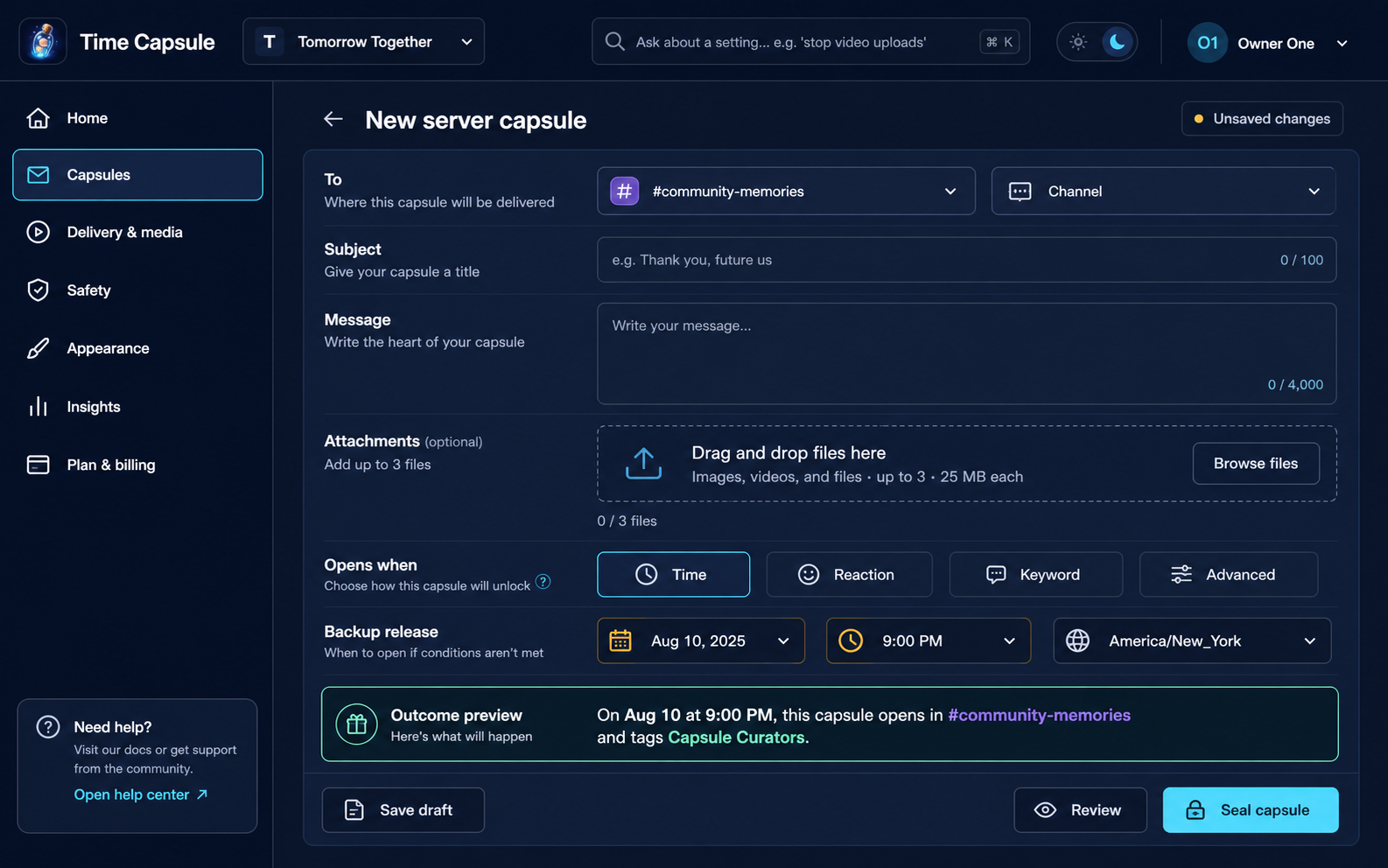
Choose destination and audience
Input: Select a channel or member, then an available mode: Channel, New thread, Thread reply, or DM. Thread reply also needs a Discord message ID. Choose No tag, @everyone, or one or more roles.
Expected result: The outcome preview names the destination and mentions only the chosen audience; No tag avoids a Discord mention.
-
Write and attach
Input: Enter Subject (1–100 characters) and Message (1–4,000); drag or browse for files within the displayed count/type/size policy.
Expected result: Character counters update, accepted files appear, and invalid media is rejected before sealing.
-
Choose the release
Input: Select Time, Reaction, Keyword, Poll, Role change, Invite use, Milestone, Recurring, Bot message, or Advanced and complete its visible fields. To compose directly into an existing Plus vault, select that vault instead; its shared unlock configuration applies.
Expected result: The preview states the event or threshold. Plus-only recipes explain their entitlement. Platform-disabled types stay visible as IN MAINTENANCE and cannot be selected or reconfigured.
-
Save, review, and seal
Input: Choose Save draft to post nothing, or Review to open the read-only summary; from Review, choose Seal capsule and confirm.
Expected result: A draft is retained without posting, or the sealed announcement is posted and the release condition becomes active.
The same capsule ID appears in the Capsules table, workspace overview, and related Activity rows. Copy it for search, recovery, or support.
Complete recipe-specific fields
| Recipe | Configuration |
|---|---|
| Backup release time | Optional but recommended. New recipes start blank so staff deliberately choose whether to add a fallback. |
| Role change | Watch one member, everyone already assigned a selected role, or anyone in the server. |
| Invite use | Release after role assignment, rules acceptance, or first message. Enable duplicate-join suppression when repeated Discord join events should count only once. |
| Milestone | Optionally mention the member who matched the condition and select roles to mention. |
| Recurring | Select one or more weekdays for weekly schedules or one or more calendar day numbers for monthly schedules. |
| Bot message | Watch All channels or a multi-selected channel set. Numeric operators remain available only while Text or number contains an integer or decimal; alphabetic characters disable them. |
Find and operate capsules
-
Narrow the list
Input: Search a title or destination and choose a state such as Sealed, Paused, Sealed forever, Delivered, Failed, or Deleted.
Expected result: Only matching records from the selected server remain.
-
Open the three-tab workspace
Input: Select a row, then use Overview, Automation, and Activity.
Expected result: Overview owns message/destination/audience and available lifecycle controls; Automation owns the release workflow; Activity shows recorded history. Delivered capsules are read-only.
-
Use lifecycle or bulk actions carefully
Input: On one capsule, read and confirm Pause/Resume, Keep sealed, Unlock and deliver now, or Delete. In the list, select 1–50 visible rows for Pause, Resume, or Delete. To move one or more eligible sealed capsules, choose Move to vault, then select an existing vault or continue to the new-vault form. Pause/Resume and vault moves require their Plus features.
Expected result: The action runs once and appears in Activity. Bulk results identify per-row failures. A vault move applies to the full selection or none, and a new-vault choice carries the selection into its guided form. Delete is a soft delete that removes active queues, and the current portal has no restore control. After a successful individual delete, Delete capsule, Pause, Keep sealed, Unlock and deliver now, Edit capsule, and the Automation tab remain visible but disabled in grey so no lifecycle action can run against the deleted record.
Automation tab
Validate and test before publishing.
-
Build the path
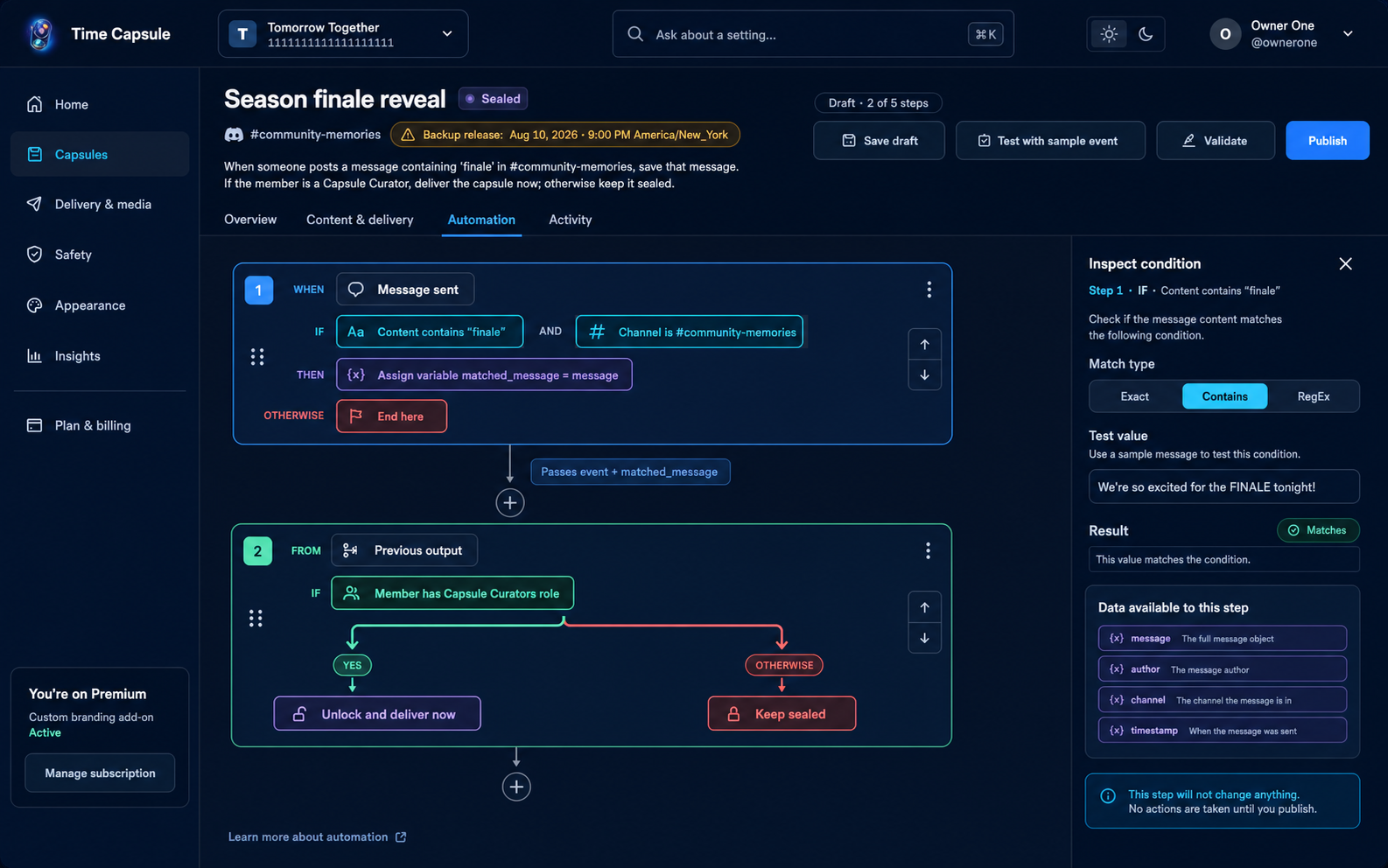
Input: On a sealed capsule, open Automation. In WHEN choose one event; in IF choose optional all/any field/operator/value conditions; in THEN/OTHERWISE add ordered actions. A workflow supports 1–5 steps.
Expected result: The plain-language preview describes the event, match, and action order. Advanced workflows require Plus and the enabled platform feature.
-
Save, validate, simulate, publish
Input: Save draft, choose Validate, then Test with a representative event; after errors are resolved, choose Publish and confirm.
Expected result: Test simulates without Discord actions. Only a successfully published revision becomes active.
Recipes and bulk tools · Plus
Reuse complete setups and transfer capsules safely.
-
Create or import a Recipe
Input: Open the main Recipes tab beside Vaults. Create a Capsule or Vault template from scratch or an existing item, including settings and automation, or bulk import one or more validated recipe bundles.
Expected result: Example values explain each field. Every save creates a version, only the newest three are retained, and individual or selected Export creates a portable recipe bundle.
-
Import or export capsules
Input: In Capsules, open the bulk tool, download the CSV, YAML, or JSON template, then preview no more than 100 records before import—or choose up to 100 filtered capsules for export.
Expected result: Row-specific validation identifies malformed destinations or release rules. Rejected rows are never silently redirected.
Vaults
Collect contributions and open them together.
-
Create the Plus vault
Input: Open Vaults → Create a vault; enter a name up to 100 characters, optional description up to 500, an opening text channel, contributor roles, and one open condition. Vaults support the same Time, Reaction, Keyword, Poll, Role change, Invite use, Milestone, Recurring, Bot message, and Advanced event types as capsules. Choose Server default—which shows the current server timezone—or UTC.
Expected result: The vault is saved and the bot attempts to post a Discord contribution button. A posting-permission failure leaves the vault saved and reports the missing announcement.
-
Add one or several server or member capsules
Input: For one capsule, choose Add existing capsule on the destination vault. For one or several, select eligible rows in Capsules, choose Move to vault, then select an existing vault or continue to the new-vault form. Review the release-policy warning and confirm.
Expected result: The atomic operation moves every capsule in a multi-selection or none; the single-capsule route moves that capsule. Successful capsules inherit the vault unlock configuration and discard their prior events and backup times.
-
Manage the vault and its sub-capsules
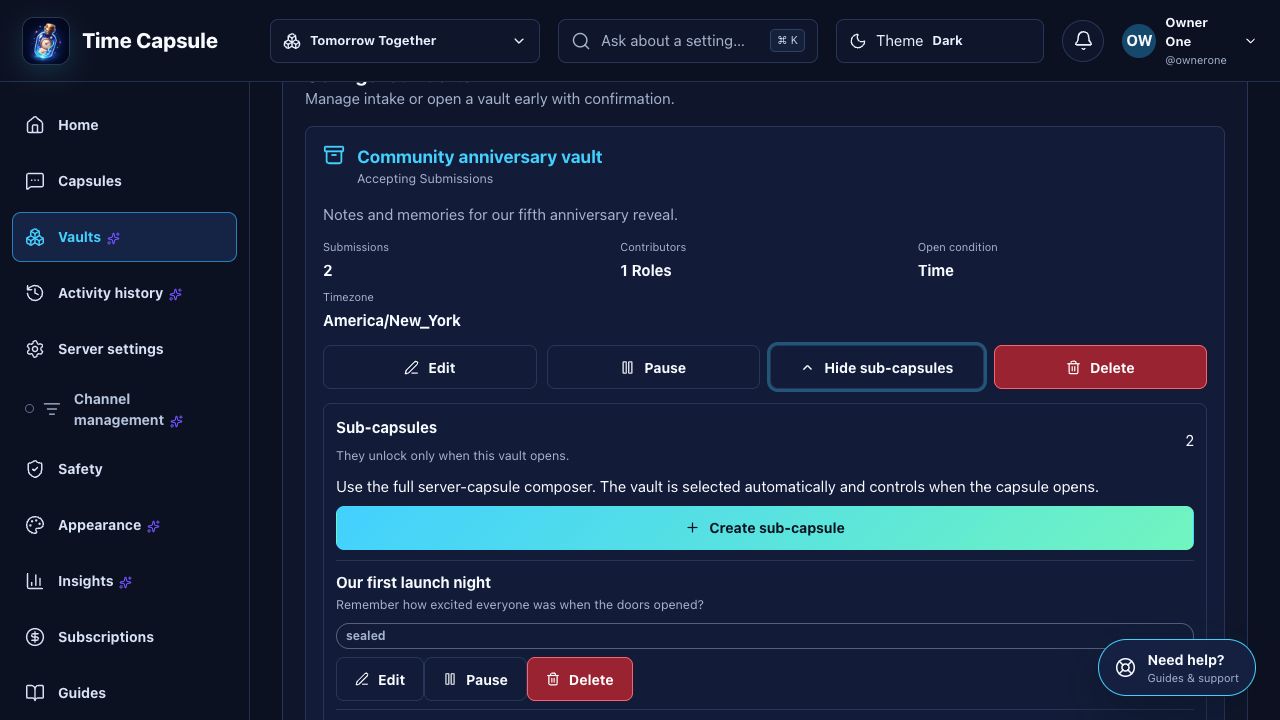
Input: In the configured-vault table, compare Name, Channel, Type, and Type condition; choose Edit, Pause, or View sub-capsules. In the expanded list, create, edit, pause/resume, inspect, or delete a capsule.
Expected result: Every saved vault stays in the list with its current status and configuration: Entries Closed, Capsules Locked, Entries Open, Capsules Locked, or Sealed, Capsule/Vault locked. Its sub-capsules remain manageable when the state permits; pausing stops the vault without deleting it.
-
Repair a paused delivery
Input: If Discord rejects the opening channel because it was deleted or the bot lost access, choose Repair delivery, select an approved replacement channel, then choose Save destination and retry.
Expected result: The vault stays sealed during moderator review and resumes from the first unfinished sub-capsule after the replacement passes the bot permission checks.
-
Delete a populated vault safely
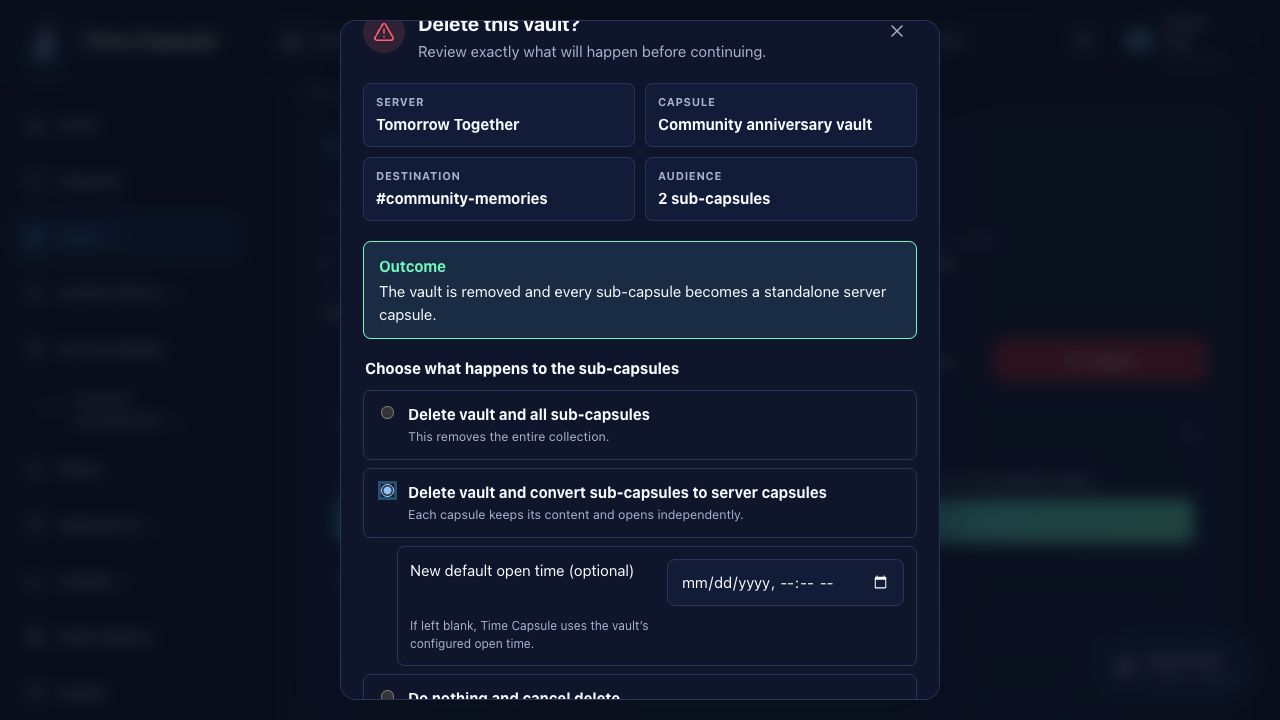
Input: Choose Delete and select one of three outcomes: delete the vault and every sub-capsule; delete the vault and convert sub-capsules to server capsules; or cancel. For conversion, optionally enter a new default open time.
Expected result: Delete-all retires the entire collection. Conversion preserves the capsules as standalone server capsules and uses the new open time, or the vault’s configured open time when none is supplied. Cancel changes nothing.
-
Restore the announcement or open early
Input: After fixing channel permission, choose Post contribution button. To open early, choose Open vault, review destination/count, then Open and deliver all.
Expected result: Members can contribute from the restored announcement, or stored capsules deliver in order with Discord rate-limit pacing and the opened vault stops accepting submissions.
Unsaved changes: If you follow a portal link, switch servers, or otherwise leave a changed settings form, the portal asks whether to Discard changes or Stay on page. Saving clears the warning.
When the platform Vaults flag is disabled, existing vault data remains safe while this page shows IN MAINTENANCE; creation and management resume after the feature is enabled.
Server settings
Set broad delivery and media defaults.
-
Set availability, destination, and timezone
Input: Set Bot availability, Default channel, and an IANA timezone such as
America/New_York. Re-enabling a paused bot requires reading its confirmation.Expected result: Normal command/delivery behavior follows availability. The default destination is used only when a new capsule has no explicit channel; a deleted explicit destination pauses for moderator review instead of falling back. Date previews use the timezone.
-
Set member editing access
Input: Turn Allow members to edit their capsules on or off according to server policy.
Expected result: When enabled, Edit in portal issues a short-lived, single-use link to a capsule-only member page with no moderator navigation. Disabling the setting prevents new links and revokes active member-edit sessions.
-
Set attachment policy and save
Input: Allow/block images, videos, and files; optionally set files per capsule and per-file KB/MB size within displayed maxima; leave blank to inherit the tier default; choose Save changes.
Expected result: The portal says Your server settings are saved. The update is audited; a version conflict asks you to refresh.
Channel management · Plus
Refine individual destinations.
-
Build allowed and blocked lists
Input: Add channels/categories to the whitelist or blacklist; a selected category expands to child channels.
Expected result: A non-empty whitelist limits premium delivery; the blacklist always wins, including over the default channel.
-
Override or reset one channel
Input: Select a channel and override attachments, anonymous capsules, delivery, safety profile, explicit language, harassment, crisis alerts, or media types—or choose Reset override.
Expected result: Only that channel uses non-default values; Reset returns it immediately to server settings.
Safety
Manage trusted roles, reports, content controls, and bans.
-
Set staff and report routing
Input: As owner/Manage Server, choose trusted non-managed Capsule manager roles. Choose a private Report destination, optional Reviewer role/mention, audit-trail mode/channel, and crisis destinations the bot can access.
Expected result: Role holders gain portal access after sign-in refresh; new reports and audit alerts use the configured private routes.
-
Set content controls
Input: Configure explicit-language blocking/list, harassment warnings, crisis alerts, and personal-information blocking. Explicit entries are one per line, case-insensitive, up to 200 entries of 80 characters each.
Expected result: New/edited content follows saved policy. Crisis detection is an alerting aid, not emergency services.
-
Manage an active ban
Input: Under Banned users, choose a unique Discord username/ID, optional duration, and required reason. To change/remove it, select the record and provide the required action reason.
Expected result: The active record changes and the audit retains who acted and why.
Appearance
Update the selected server’s Discord-visible bot profile.
-
Confirm branding access and edit
Input: Review the entitlement notice; when active, enter Display name (up to 32) and Bio (up to 218), then provide/default/upload avatar and banner images.
Expected result: Without entitlement, the preview remains but editing is locked. Valid text and images update the preview.
-
Meet image rules and verify
Input: Use JPG/PNG/GIF under 10 MB; uploaded avatar must be square and at least 128×128; banner must be exactly 680×240. Save, then view the app profile in Discord.
Expected result: The selected server’s Discord-visible identity matches the preview without changing other servers.
Insights · Plus
Read server metrics and runtime freshness.
-
Review counts and mix
Input: Compare Stored, Delivered, Pending, delivery states, media counts, vault totals, sub-capsules, and time/reaction/keyword/advanced release mix.
Expected result: Paused work remains pending but is separated from active/retrying work; media counts attachments while release values count capsules.
-
Check live status and timestamp
Input: Read Discord readiness, gateway status, server events, and As of.
Expected result: You know when the snapshot was collected. Include a stale/unavailable timestamp in support.
Notifications and activity
Follow changes without losing your place.
-
Read save and error notices
Input: After saving or receiving an error, read the notice floating at the top of the browser viewport.
Expected result: One notice follows the viewport, disappears automatically, and offers an X on the right for immediate dismissal.
-
Use the header bell
Input: Select the bell to open notifications and recent activity. Mark all as read, dismiss one item, or dismiss all.
Expected result: The right-side activity drawer opens. It and the help drawer are mutually exclusive, so the most recently selected control owns the open drawer. Dismissed items are marked read and do not leave a stale unread count.
-
Review or undo a change
Input: Open the full Activity page, then search, filter, or sort its table. Use a relevant deep link to return to the capsule, vault, or setting. Select Undo only after reviewing the change.
Expected result: Each entry identifies the actor, timestamp, change, prior value, and new value. Undo is offered only for the latest reversible change to each configuration setting; it reverts that one change and is not version history.
Plan & billing + support
Use the dedicated owner and escalation flows.
Open Plan & billing to review tier, access source, entitlements, purchase routes, invoices, eligible transfer, or cancellation. Follow the Plans & billing guide before changing ownership or subscription state.
From any page, choose Need help? for contextual help and Contact support. The account, selected server, current page, and latest portal request reference are attached as described in the Support guide.